Use the OpenRAG terminal
The OpenRAG terminal session provides a simplified and guided experience for configuring, managing, and monitoring your OpenRAG deployment directly from the terminal.
If you install OpenRAG with uv or uvx, you use an OpenRAG terminal session to manage your OpenRAG deployment.
The terminal session guides you through the initial setup, automatically manages your OpenRAG .env and docker-compose files, and provides convenient access to service management controls.
In contrast, when you deploy OpenRAG with self-managed services, you must manually configure OpenRAG by preparing a .env file, and then use Docker or Podman commands to deploy and manage your OpenRAG services.
Start a terminal session
If you installed OpenRAG with uv, start a terminal session with uv run openrag.
If you installed OpenRAG with uvx, start a terminal session with uvx openrag.
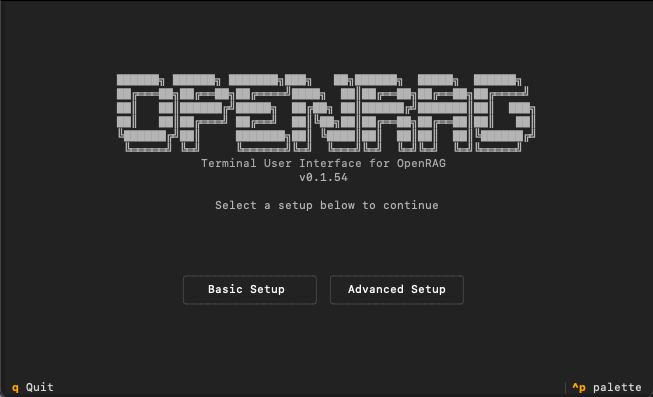
Start a GUI terminal session
The GUI terminal (TUI) is required to access certain controls like Factory Reset, GPU/CPU mode, and Upgrade.
For a GUI terminal experience, start OpenRAG with the --tui flag.
The GUI terminal, also known as the Terminal User Interface (TUI), provides the same options as the CLI terminal session with added support for mouse navigation and button-like controls for a more visual and interactive experience.
Manage services with the terminal
A Docker or Podman VM must be running before you start OpenRAG unless you are running OpenRAG on a Linux-based VM, such as a Linux-based WSL image.
The container VM must have sufficient resources to run the OpenRAG containers. The minimum recommendation is 8 GB of RAM and at least 50 GB of free disk space.
For more information, see Troubleshoot OpenRAG.
Use the terminal's Start services and Stop services options to start and stop the OpenRAG services.
For more information and fine-grained controls, see Manage OpenRAG services.
Toggle GPU/CPU mode
You can toggle between GPU and CPU mode if your system has compatible GPU hardware and drivers installed:
-
Start the terminal session with
--tui, such asuv run openrag --tui. -
Click Status in the TUI.
-
Click Switch to GPU Mode or Switch to CPU Mode.
This change requires restarting all OpenRAG services because each mode has its own docker-compose file.
GPU acceleration isn't required for most use cases. OpenRAG's CPU-only deployment doesn't prevent you from using GPU acceleration in external services, such as Ollama servers.
GPU acceleration is required only for specific use cases, typically involving customization of the ingestion flows or ingestion logic. For example, writing alternate ingest logic in OpenRAG that uses GPUs directly in the container, or customizing the ingestion flows to use Langflow's Docling component with GPU acceleration instead of OpenRAG's Docling Serve service.
Exit the OpenRAG terminal
To exit the OpenRAG terminal session, select the Exit option from the terminal menu, or quit the process (Cmd+C on macOS).
If you are using the TUI (--tui), you can press q to quit the TUI.
Exiting the terminal session doesn't stop your OpenRAG services. Your OpenRAG services continue to run until they are stopped from within the terminal session or by another process that inadvertently stops them.
To restart the terminal session, see Start a terminal session.